The Best Website for making Beginners from no knowledge to Professional



Learn how to build a calculator app in Android Studio using ConstraintLayout and Material Design. This easy step-by-step guide is perfect for beginners learning Android UI design — no coding experience needed!
How to Build a Calculator App in Android Studio (Step-by-Step for Absolute Beginners)
This is going to be an easy to follow tutorial on how to build a calculator app in Android Studio even for an absolute beginner. This mean even if you’ve never coded or develop an app before, you will be able to understand the process of the calculator app creation line by line.
Introduction: Why Start with a Calculator App?
Are you completely new to Android development and wondering where to start?
Building a simple calculator app is one of the easiest and most rewarding beginner projects.
It helps you understand:
- How to use Android Studio (the main tool for creating Android apps).
- How XML layouts work.
- How to design a clean and responsive UI (User Interface).
Even if you’ve never written a line of code before, this tutorial will guide you step by step — from setting up your project to building a professional-looking calculator interface that feels modern and smooth.
Let’s begin!
Step 1: Setting Up Your Project in Android Studio
What You’ll Need
- Android Studio (latest version)
- Basic familiarity with opening and creating new projects (a video guide will be attached later to this blog)
- A bit of patience

Creating a New Project
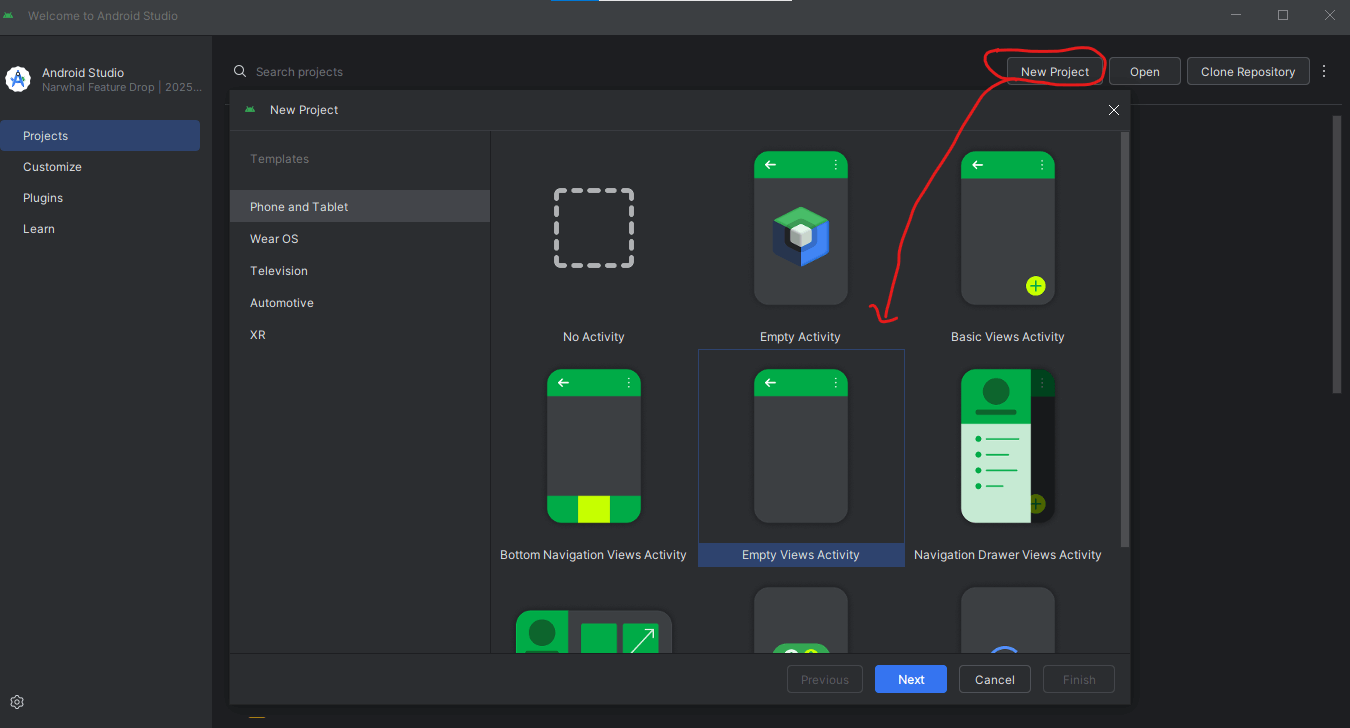
- Open Android Studio → click “New Project.”
- Choose “Empty Views Activity” → click “Next.”
- Why this template? It gives you a clean canvas with an empty XML file to design freely.
If you don’t have Android Studio Setup, Download Android Studio Here
READ MORE: HOW TO SETUP ANDROID STUDIO
- Name your project:
SimpleCal (or your preferred name) - Language: Kotlin (recommended for modern Android apps)
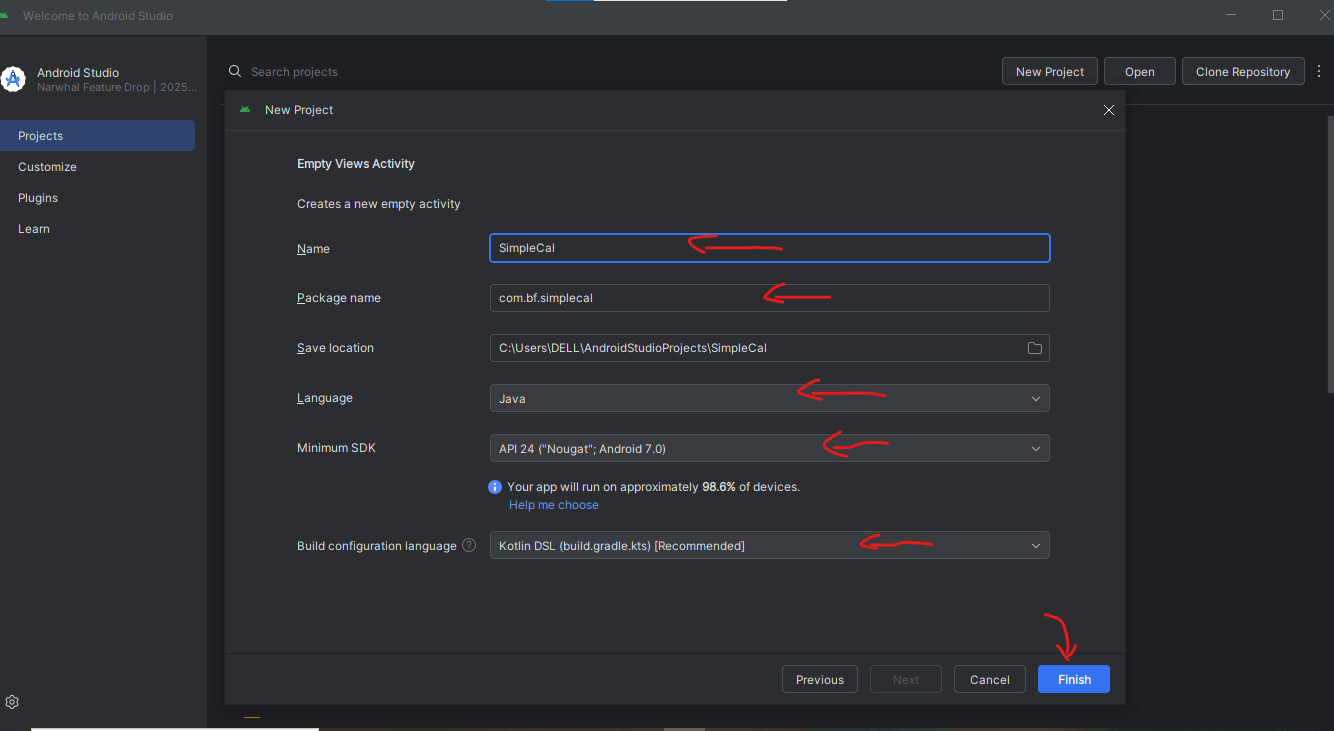
3. Minimum SDK: API 21 (Android 5.0 Lollipop) or 24 (Android 7.0 Nougat)
-
- Ensures your app runs on 95%+ of Android devices.
4. Click “Finish” and let Android Studio build your project.
💡 Tip: If Android Studio asks to install missing components, click “OK.” It’s setting up essential tools automatically.
Step 2: Planning the Calculator Layout
Before designing, let’s understand our UI structure.
Your calculator screen will have two main sections:
- Display Area (
TextView) — shows the numbers and results. - Button Grid (
ConstraintLayout) — where all the calculator buttons (0–9, +, −, ×, ÷, etc.) live.
We’ll use a ConstraintLayout because it’s flexible and ideal for creating responsive UIs that look great on all screen sizes.
Step 3: Creating the Calculator Button Style
Defining a custom button style saves you time and ensures a consistent look across all calculator buttons.
Go to:
res → values → themes.xml
Replace its contents with this code:
<resources xmlns:tools="http://schemas.android.com/tools">
    <style name="Base.Theme.SimpleCal" parent="Theme.Material3.DayNight.NoActionBar"/>
    <style name="Theme.SimpleCal" parent="Base.Theme.SimpleCal"/>

    <!-- Custom Calculator Button Style -->
    <style name="CalcCircleButton" parent="Widget.MaterialComponents.Button">
        <item name="android:layout_width">0dp</item>
        <item name="android:layout_height">0dp</item>
        <item name="android:textSize">24sp</item>
        <item name="android:textColor">#FFFFFF</item>
        <item name="android:fontFamily">sans-serif-medium</item>
        <item name="cornerRadius">1000dp</item>
        <item name="backgroundTint">#2E2E2E</item>
        <item name="android:padding">0dp</item>
        <item name="android:layout_margin">4dp</item>
        <item name="android:minWidth">0dp</item>
        <item name="android:minHeight">0dp</item>
        <item name="layout_constraintDimensionRatio">1:1</item>
    </style>
</resources>
Explanation for Beginners
cornerRadius="1000dp"→ Rounds the button corners completely (creates a circle).backgroundTint="#2E2E2E"→ Gives the button a default dark gray color.layout_constraintDimensionRatio="1:1"→ Keeps the button perfectly square, which becomes circular due to the rounded corners.
Step 4: Designing the Calculator UI (activity_main.xml)
Now we’ll build the user interface!
Go to:
res → layout → activity_main.xml
Delete everything inside and paste the code below:
<?xml version="1.0" encoding="utf-8"?>
<androidx.constraintlayout.widget.ConstraintLayout
    xmlns:android="http://schemas.android.com/apk/res/android"
    xmlns:app="http://schemas.android.com/apk/res-auto"
    xmlns:tools="http://schemas.android.com/tools"
    android:id="@+id/main"
    android:layout_width="match_parent"
    android:layout_height="match_parent"
    android:padding="16dp"
    tools:context=".MainActivity">

    <!-- ===== DISPLAY SCREEN ===== -->
    <TextView
        android:id="@+id/tvResult"
        android:layout_width="0dp"
        android:layout_height="wrap_content"
        android:text="0"
        android:textColor="@color/black"
        android:textSize="48sp"
        android:gravity="end"
        android:padding="16dp"
        android:singleLine="true"
        app:layout_constraintBottom_toTopOf="@id/buttonLayout"
        app:layout_constraintEnd_toEndOf="parent"
        app:layout_constraintStart_toStartOf="parent"
        app:layout_constraintTop_toTopOf="parent" />

    <!-- ===== BUTTON LAYOUT CONTAINER ===== -->
    <androidx.constraintlayout.widget.ConstraintLayout
        android:id="@+id/buttonLayout"
        android:layout_width="0dp"
        android:layout_height="wrap_content"
        android:padding="8dp"
        app:layout_constraintBottom_toBottomOf="parent"
        app:layout_constraintEnd_toEndOf="parent"
        app:layout_constraintStart_toStartOf="parent">

        <!-- ROW 1: Clear, %, Delete, ÷ -->
        <com.google.android.material.button.MaterialButton
            android:id="@+id/btnClear"
            style="@style/CalcCircleButton"
            android:text="C"
            android:backgroundTint="#FF5722"
            app:layout_constraintTop_toTopOf="parent"
            app:layout_constraintStart_toStartOf="parent"
            app:layout_constraintEnd_toStartOf="@id/btnPercentage"/>

        <com.google.android.material.button.MaterialButton
            android:id="@+id/btnPercentage"
            style="@style/CalcCircleButton"
            android:text="%"
            android:backgroundTint="#03A9F4"
            app:layout_constraintTop_toTopOf="parent"
            app:layout_constraintStart_toEndOf="@id/btnClear"
            app:layout_constraintEnd_toStartOf="@id/btnDelete"/>

        <com.google.android.material.button.MaterialButton
            android:id="@+id/btnDelete"
            style="@style/CalcCircleButton"
            android:text="⌫"
            android:backgroundTint="#FF5722"
            app:layout_constraintTop_toTopOf="parent"
            app:layout_constraintStart_toEndOf="@id/btnPercentage"
            app:layout_constraintEnd_toStartOf="@id/btnDivide"/>

        <com.google.android.material.button.MaterialButton
            android:id="@+id/btnDivide"
            style="@style/CalcCircleButton"
            android:text="/"
            android:backgroundTint="#03A9F4"
            app:layout_constraintTop_toTopOf="parent"
            app:layout_constraintStart_toEndOf="@id/btnDelete"
            app:layout_constraintEnd_toEndOf="parent" />

        <!-- Add the remaining button rows (numbers, operators, equals) -->
        <!-- ... -->
    </androidx.constraintlayout.widget.ConstraintLayout>
</androidx.constraintlayout.widget.ConstraintLayout>
How This Layout Works
- Each button is linked to another using constraints (
app:layout_constraintStart_toEndOf). - The grid stays aligned even when the screen size changes.
- Material buttons automatically apply modern elevation(shadow) and ripple effects(click animation).
Step 5: Preview and Customize
Switch to the Design view in Android Studio.
- A dark gray background
- Circular colorful buttons
- A big, bold display showing “0”
Feel free to:
- Change the colors to match your theme.
- Adjust text size or padding for spacing.
- Add icons if you like (from Android’s built-in vector library).
Step 6: What’s Next?
You’ve just built a beautiful, professional calculator UI — congrats!
Here’s what to do next:
- Add button click logic in
MainActivity.kt. - Learn how to handle user input (numbers and operations).
- Implement a simple calculation engine.
We’ll cover that in the next tutorial:
“How to Make Your Android Calculator Functional (No Math Degree Required!)”
Beginner FAQs
Q1: Do I need coding experience for this tutorial?
No! This guide is designed for absolute beginners. You’ll mostly be working with XML (a visual layout language, not programming).
Q2: Why use ConstraintLayout instead of LinearLayout or GridLayout?
Because ConstraintLayout gives you the most flexibility and helps build responsive UIs that look great on all screen sizes.
Q3: Can I use Java instead of Kotlin?
Yes, but new Android projects are now officially recommended to use Kotlin since it’s simpler and safer for beginners.
Q4: Why is my button not perfectly circular?
Make sure your CalcCircleButton includes layout_constraintDimensionRatio="1:1" — that ensures the width and height remain equal.
Q5: How do I test my UI?
Click the green “Run” ▶️ button in Android Studio. You can use an emulator or a physical Android device connected via USB.
Key Takeaways
You’ve learnt how to:
- Create and set up a project in Android Studio
- Use ConstraintLayout for flexible designs
- Apply Material Design for a modern look
- Build consistent button styles using XML
Keep experimenting and customizing — that’s how you’ll grow as a developer!
Final Thoughts
Building this calculator UI is more than just an exercise — it’s your first real step toward becoming an Android app developer. Once you’re comfortable designing layouts, you can bring your ideas to life with just a few lines of Kotlin code.
If this guide helped you, share it with your friends or coding community — and stay tuned for more beginner tutorials on Android development.